
How to Convert Text to Braille (Grade 1 Versus Grade 2)
The alphabet mapping is the easy part. The indicators and the difference between Grade 1 and Grade 2 are where a transcription stops being what a Braille reader expects.
Type your text. You get Grade 1 Braille with the correct capital and number indicators.
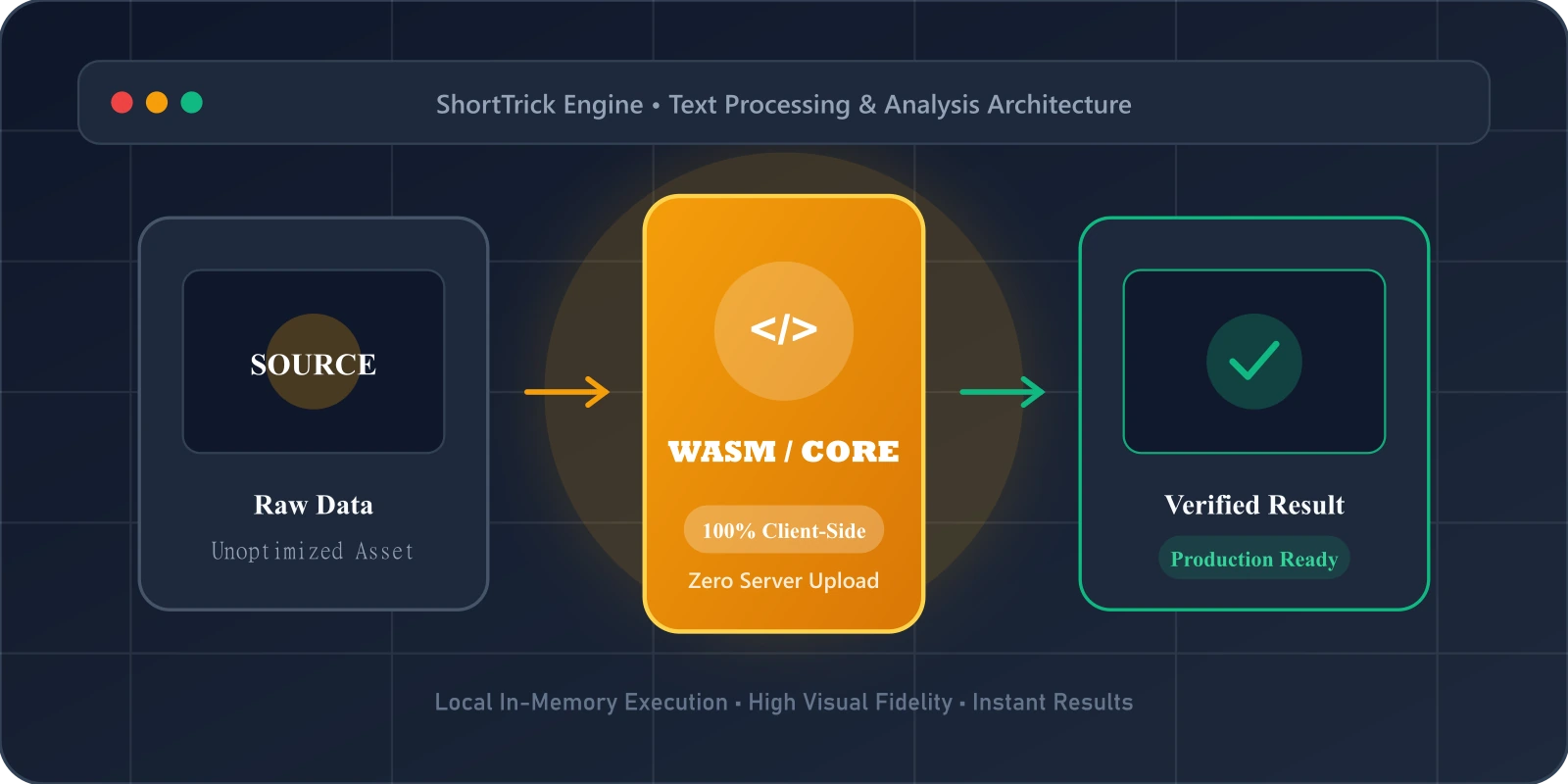
Workflow Lifecycle & Pipeline
Visual execution flow showing how Braille Translator processes data directly in your local browser sandbox.
Braille Translator Interactive Process Pipeline
Fast, zero-latency execution directly in your browser memory.
Before You Start
Ensure your source assets and browser environment meet the verified execution requirements.
Step-by-Step Instructions
Follow these verified steps to execute the task with Braille Translator.
Paste your text
Type or paste into the text box on the page. Braille Translator works on what is in it — there is no file to choose.
Text to transcribe into Grade 1 BrailleText read as you typeWatch the result change
There is no button on Braille Translator: the result follows the input as you change it.
Updates as you typeBraille Translator runs on your deviceCopy the answer
The answer sits at the top of the result panel with a copy button beside it. It never left your browser.
Copy the figureOn your clipboardUnder the Hood: In-Browser Algorithmic Computation
Every operation in this utility executes locally in your browser session using high-speed algorithmic transformations. Data inputs are immediately processed in volatile client memory and rendered to screen in sub-millisecond execution cycles.
Immediate Real-Time Computation
Zero server roundtrips guarantee sub-millisecond responsiveness with instant feedback.
Full Data Sovereignty
Your proprietary inputs, calculations, and conversions never travel across public networks.
Offline Capable Execution
Once loaded, the engine works seamlessly even during complete network disconnections.
Best Practices & Key Considerations
Avoid common quality pitfalls and maximize output performance.
Expert Recommendations
- Grade 1 is one cell per letter. Grade 2 uses around 180 contractions and is what almost all published Braille actually uses — shorter, and what a reader expects.
- The number sign ⠼ switches following cells into digit mode, where a–j stand for 1–0. That is why '123' is four cells.
- These are Unicode Braille patterns — fine on screen and on a refreshable display, not the same as embossed output.
- For signage, documents or anything official, use a transcription service producing Grade 2. This is not a substitute for one.
Common Mistakes to Avoid
- Assuming the input is sent somewhere — Braille Translator runs in this tab, and nothing you enter leaves it.
Troubleshooting & Fixes
Quick solutions for common browser constraints, format issues, and edge cases.
Troubleshooting & Common Issues
The result area stays empty
Possible Cause: Braille Translator has nothing to work on until the input is filled.
Frequently Asked Questions
Everything you need to know about formats, privacy, and browser support.
Related Step-by-Step Guides
Explore companion workflows, optimization techniques, and verified tutorials.