
How to Convert Text to the Bionic Reading Format
Bionic reading bolds the opening of every word so the eye has a fixation point. It is marketed on reading speed, and the independent studies have not found that effect. Plenty of readers still say they find it more comfortable, which is a perfectly good reason to use it — just not the one on the tin.
Paste the text, set how much of each word to bold, and choose HTML, Markdown or plain capitals.
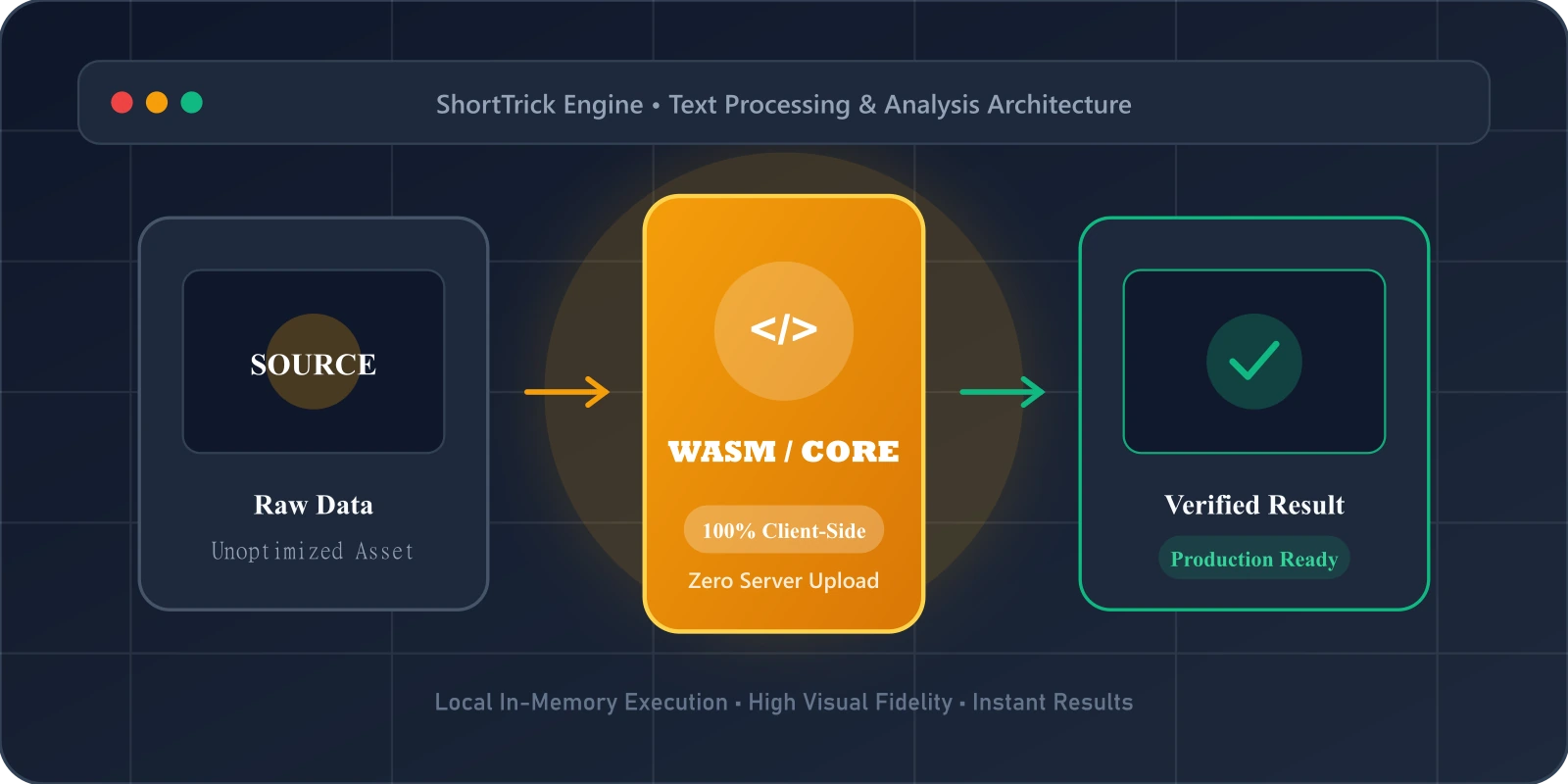
Workflow Lifecycle & Pipeline
Visual execution flow showing how Bionic Reading Converter processes data directly in your local browser sandbox.
Bionic Reading Converter Interactive Process Pipeline
Fast, zero-latency execution directly in your browser memory.
Before You Start
Ensure your source assets and browser environment meet the verified execution requirements.
Step-by-Step Instructions
Follow these verified steps to execute the task with Bionic Reading Converter.
Paste your input
Type or paste into the input box on the page. Bionic Reading Converter works on what is in it — there is no file to choose.
Paste the text to convert...Input read as you typeChoose your 3 settings
Bold the first (%) takes a number from 10 to 90, in steps of 5, At least this many letters takes a number from 1 to 5 and Output as takes one of HTML (<b> tags), Markdown (**bold**) or Plain text (CAPITALS). Leave them alone and Bionic Reading Converter uses 50, 1 and HTML (<b> tags).
Bold the first (%) 50 · At least this many letters 1 · Output as HTML (<b> tags)Watch the result change
There is no button on Bionic Reading Converter: the result follows the input as you change it.
Updates as you typeBionic Reading Converter runs on your deviceCopy the answer
The answer sits at the top of the result panel with a copy button beside it. It never left your browser.
Copy the figureOn your clipboardUnder the Hood: In-Browser Algorithmic Computation
Every operation in this utility executes locally in your browser session using high-speed algorithmic transformations. Data inputs are immediately processed in volatile client memory and rendered to screen in sub-millisecond execution cycles.
Immediate Real-Time Computation
Zero server roundtrips guarantee sub-millisecond responsiveness with instant feedback.
Full Data Sovereignty
Your proprietary inputs, calculations, and conversions never travel across public networks.
Offline Capable Execution
Once loaded, the engine works seamlessly even during complete network disconnections.
Settings & Options Explained
Fine-tune quality, format, and compression parameters for your exact workflow.
Settings & Configuration Guide
| Setting | Recommended Value | How It Works & Impact |
|---|---|---|
| Bold the first (%) | 50 | Takes a number from 10 to 90, in steps of 5. Impact: The control runs from 10 to 90; 90 is as far as it goes. |
| At least this many letters | 1 | Takes a number from 1 to 5. Impact: The control runs from 1 to 5; 5 is as far as it goes. |
| Output as | HTML (<b> tags) | Takes one of HTML (<b> tags), Markdown (**bold**) or Plain text (CAPITALS). Impact: Each option is a different output as; switching it changes the result, not the speed. |
Best Practices & Key Considerations
Avoid common quality pitfalls and maximize output performance.
Expert Recommendations
- Start around 40-50%. Higher than about 60% and almost the whole word is bold, which removes the contrast the format depends on.
- Use HTML for a web page, Markdown for notes apps, and capitals only where no formatting is possible at all.
- Lower the minimum bold length if you would rather short words were left plain.
Common Mistakes to Avoid
- Expecting Bold the first (%) to go past 90 — 10 to 90 is the range the control offers.
- Expecting At least this many letters to go past 5 — 1 to 5 is the range the control offers.
- Leaving Output as on HTML (<b> tags) when Markdown (**bold**) or Plain text (CAPITALS) was wanted.
- Assuming the input is sent somewhere — Bionic Reading Converter runs in this tab, and nothing you enter leaves it.
Troubleshooting & Fixes
Quick solutions for common browser constraints, format issues, and edge cases.
Troubleshooting & Common Issues
Bold the first (%) will not go above 90
Possible Cause: The control runs from 10 to 90.
At least this many letters will not go above 5
Possible Cause: The control runs from 1 to 5.
The answer is right but not in the form you wanted
Possible Cause: Output as is set to HTML (<b> tags), and it decides that.
The result area stays empty
Possible Cause: Bionic Reading Converter has nothing to work on until the input is filled.
Frequently Asked Questions
Everything you need to know about formats, privacy, and browser support.
Related Step-by-Step Guides
Explore companion workflows, optimization techniques, and verified tutorials.