
Where A Browser Notepad Actually Keeps Your Text
A notepad that saves "automatically" is making a promise, and the promise is narrower than it sounds. Knowing exactly what local storage does and does not survive is the difference between a convenient scratch pad and a lost afternoon.
Type. Notes are written to this browser shortly after you stop, and read back on your next visit. Download anything you cannot lose.
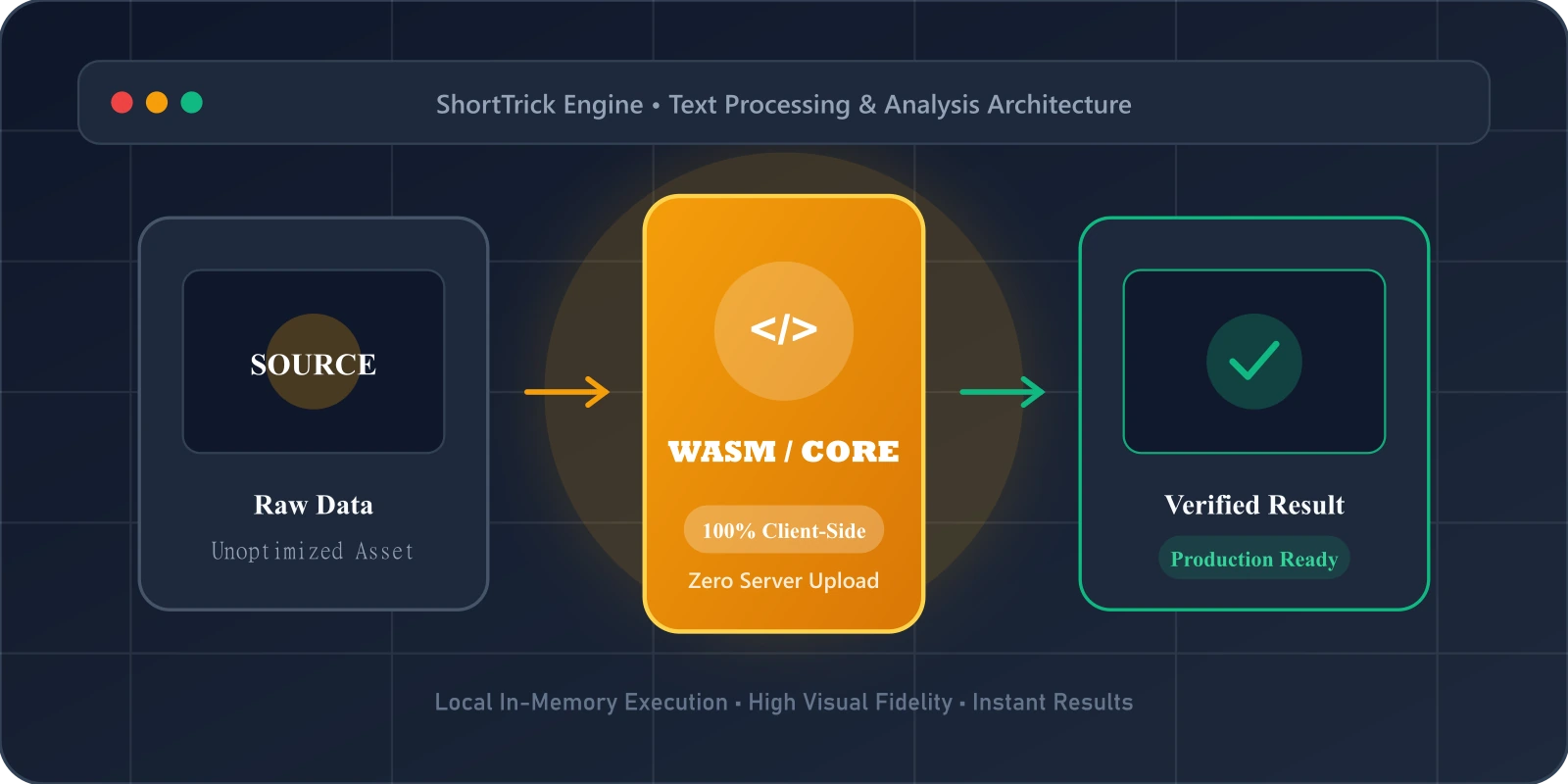
Workflow Lifecycle & Pipeline
Visual execution flow showing how Online Notepad processes data directly in your local browser sandbox.
Online Notepad Interactive Process Pipeline
Fast, zero-latency execution directly in your browser memory.
Before You Start
Ensure your source assets and browser environment meet the verified execution requirements.
Step-by-Step Instructions
Follow these verified steps to execute the task with Online Notepad.
Open Online Notepad
Online Notepad is the page itself: there is no form to fill in and no Run button. Everything happens as you use it.
Open the pageOnline Notepad readyType your note
Type into the editor. It writes to this browser a moment after you stop, so a reload does not lose it.
Type your noteUpdates as you use itTake the result away
Download the note as a .txt file or copy it. It is kept in this browser only, so download anything you cannot lose.
Read it off the pageShown in the toolUnder the Hood: In-Browser Algorithmic Computation
Every operation in this utility executes locally in your browser session using high-speed algorithmic transformations. Data inputs are immediately processed in volatile client memory and rendered to screen in sub-millisecond execution cycles.
Immediate Real-Time Computation
Zero server roundtrips guarantee sub-millisecond responsiveness with instant feedback.
Full Data Sovereignty
Your proprietary inputs, calculations, and conversions never travel across public networks.
Offline Capable Execution
Once loaded, the engine works seamlessly even during complete network disconnections.
Best Practices & Key Considerations
Avoid common quality pitfalls and maximize output performance.
Expert Recommendations
- What local storage survives: a reload, a closed tab, a browser restart, a crash, going offline. What it does not: another device, another browser, a private window, and clearing site data or cookies. Everything else about this tool follows from that list.
- It is not a backup, and that is a consequence of the design rather than an oversight. Nothing is uploaded, so there is no copy anywhere else — which is the point, and also the reason to download anything that matters.
- In a private window with site data blocked, local storage throws on the first write. Every access here is wrapped, so the editor keeps working and tells you plainly that nothing will be kept, instead of silently losing a page of notes.
- Writes are debounced a fraction of a second after you stop typing rather than fired on every keystroke. A write per key would be thousands of serialisations a minute for no benefit, and the gap is far shorter than the time between deciding to close a tab and closing it.
- Browsers give a site a few megabytes of local storage in total, which is thousands of pages of plain text. Pasting a large file in is the only realistic way to hit it — and if a write ever fails, the tool says so rather than pretending it saved.
Common Mistakes to Avoid
- Looking for a Run button - Online Notepad is the page itself, and it works as you use it.
- Expecting it to keep going after the tab is closed. It lives in the page, so closing the page ends it.
- Treating what is on screen as a saved record. Nothing is uploaded and nothing is submitted, so take a copy of anything you need to keep.
Troubleshooting & Fixes
Quick solutions for common browser constraints, format issues, and edge cases.
Troubleshooting & Common Issues
My notes are not here any more
Possible Cause: They are kept in this browser’s local storage, which is cleared with site data and is separate in a private window and on every other device.
Nothing on the page responds
Possible Cause: Online Notepad is built in the page itself rather than sent to a server, so it needs JavaScript enabled in this tab.
Frequently Asked Questions
Everything you need to know about formats, privacy, and browser support.
Related Step-by-Step Guides
Explore companion workflows, optimization techniques, and verified tutorials.